Heading Colors Widget

The Heading Colors Widget
To the left of the theme widgets is a vertical stack of six tiny rectangles. These are the Heading Colors widget. Each rectangle displays potential font- and background-colors for headings <h1> through <h6>.
These setting are only active when the Colors: OFF/ON Widget is set to ON.
To change a heading’s font or background color, select the appropriate dash_hn note, open it, and click the appropriate color well—$NameColor for the heading text and $Color for the heading background. Font-color is indicated by the widget’s text and a solid color swatch ( ⬛︎ ). Background-color is indicated by the color of the note.
- To use the default font color from the PostTitle Widget, set
$NameColorto null (that is, delete it entirely). Default font color is indicated by an empty color swatch ( ⬜︎ ). - To keep the background transparent, set
$Colorto transparent. Transparent background is indicated by a transparent heading widget.
NOTE: To set an attribute to null, double-click on the value in the key attribute table (above) and hit DELETE. Or, use the Properties Inspector > Quickstamp > Appearance > Color, clear the value field, and click APPLY.
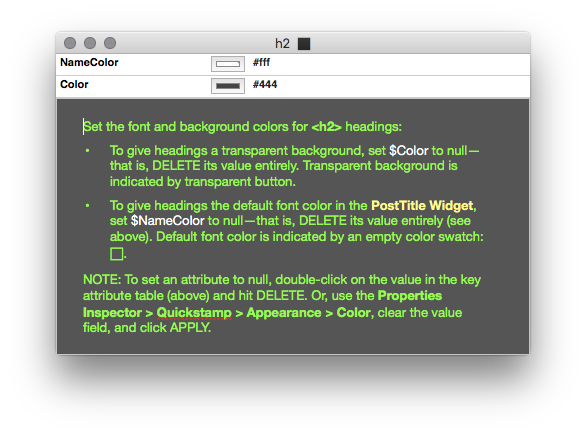
This one is for <h2>.
Finally, default padding is 3px 0 3px; use $OtherCSS to set it to something else (omit the semicolon).
override any of the above or add new styling determinations. For example, different font families may require different values for padding to look their best. Enter that here, e.g., padding: 4px 0 2px.