How To: TinderPoint Presentation
BoxPress can export your notes as a self-contained TinderPoint Presentation. Your export will function as a hypermedia presentational slideshow that will run on any browser. Comes complete with automatic pager, sophisticated navbar, and HTML Imagemaps to both help you navigate and also display divisions and structure.
- Every slide automatically exports with a three-point (Previous–Up–Next) pager.
- It’s super easy make an awesome navbar with dropdown menus and bookmark links that open-and-scroll to any subsection.
- How about a slideshow with a beautiful Tinderbox HTML Imagemap atop every page as a hybrid navigation-explanatory schema of your complex theory or tale?
- Every note with a Basic Link has a Related Links panel at the end of the subsection. Just add the INLINKS export option to display incoming links as well.
DIY
- Trim frame amenities. Remove Banner, sidebar, and footer from slides by adding the NOBANNER, NOSIDEBAR, and NOFOOTER frame options to normal_note. This will create a frame consisting only of navbar and footer. (Banner and sidebar will still be shown on special pages.)
- Stock the navbar. Make a powerful navbar just by dragging aliases inside! Make a dropdown menu by making a note with the DROPDOWN export option. Add separators by making a note and setting its
$Separatorto true. Make a bookmark link by making a note with the ANCHOR export option—just type the name of the exported note as ¶1 and the name of the sub-note as ¶2. Use your button to open-and-scroll directly to any subsection! If you like, make the navbar sticky by setting its$Stickyto true. - Be liberal with HTML Imagemaps. You can turn any Map View into an HTML Imagemap … in only 20 seconds. Once made, you can make it the Featured Map for any set of webpages just by assigning values to
$bpMapViewand$bpMapJPG. Enter the map’s container for$bpMapViewand the name of the cropped JPEG for$bpMapView. - Make the Imagemap front-and-center. Use the WIDEMAP to maximize width and place it at the top of the page.
- To have the same Imagemap appear at the top of every content page, set
$bpMapViewand$bpMapJPGfor normal_note. OPTION: Assign different maps to different nodes to create a structural zooming effect.
Mini-Tutorial: Make a new HTML Imagemap
Make a fresh note and add the desired aliases. Arrange them, drag Basic Links, and then place inside the origin_adorn adornment (made automatically with name hidden when you make a new note and assign the mapmaker_note prototype). When you are done, do Edit > Copy View As Image, save as JPEG, crop to the origin_adorn boundary, and re-save. To add your HTML Imagemap to the top of any POST or PAGE, just set the key attributes
bpMapView and $bpMapJPG!Mini-Tutorial: Use an old Map View as an HTML Imagemap
Make a new adornment, name it origin_adorn, and set its prototype to outmaker_adorn or mapmaker_adorn. Stretch it to cover the area you want to see inside the Imagemap. Do Edit > Copy View As Image, save as JPEG, crop to the origin_adorn boundary, and re-save. To add your HTML Imagemap to the top of any POST or PAGE, just set the key attributes
bpMapView and $bpMapJPG!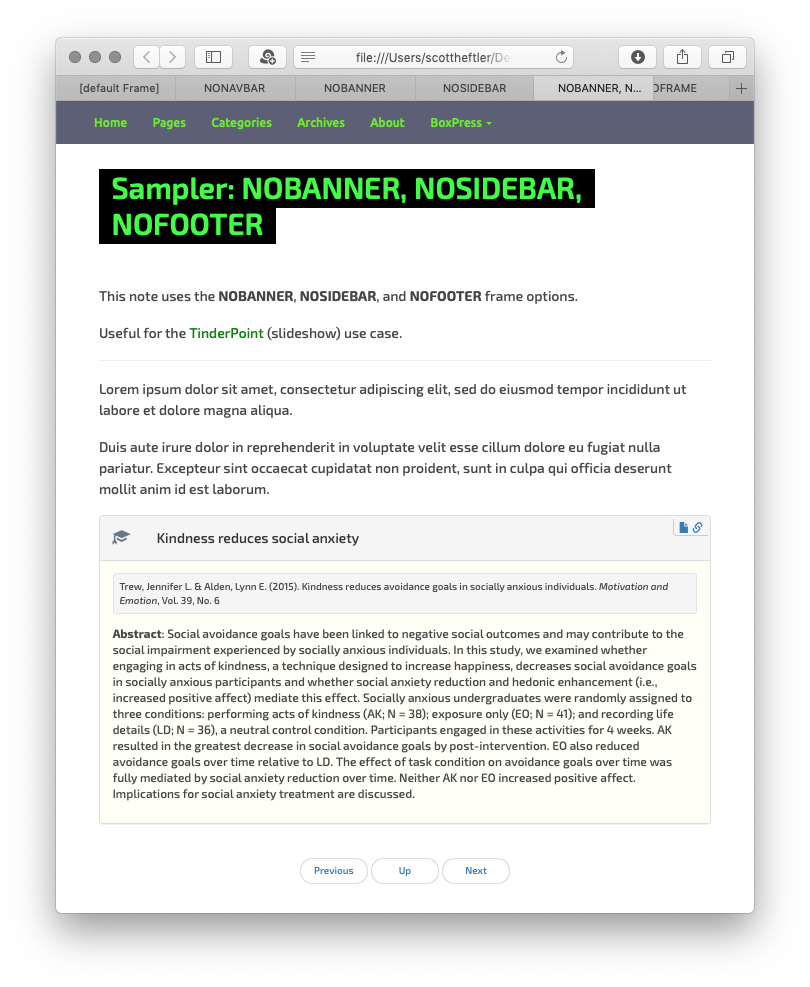
Export with $blogFrameOpt set to NOBANNER, NOSIDEBAR, and NOFOOTER.